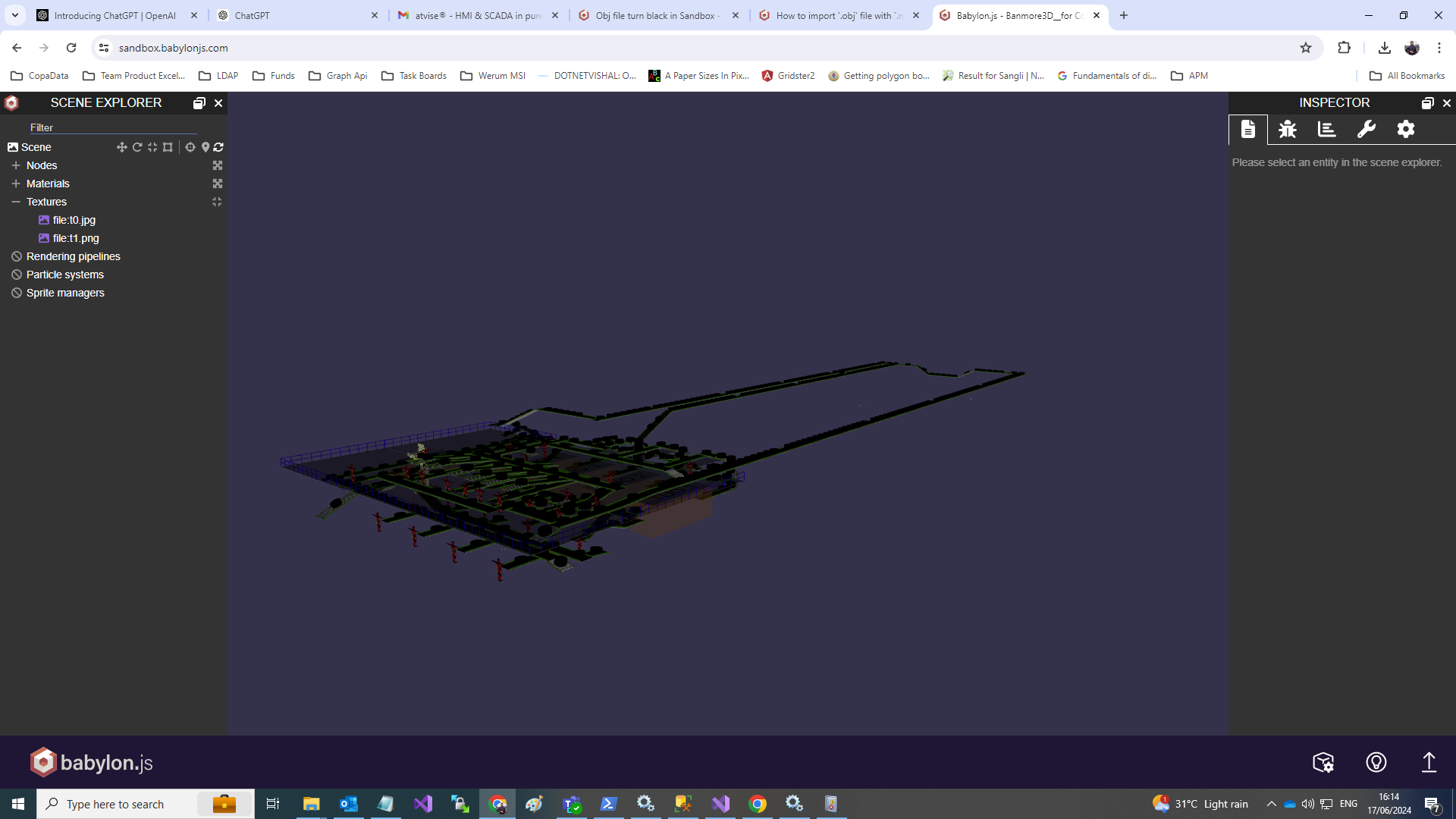
I am trying to load Obj file in sandbox and also in my application but results are same.
My scene appears to be black. I have attached my expected view but In sandbox and in my application both its not near to the expected one.
.OBJ is fine to be used with Babylon.JS in general, but this format doesn’t handle any embedded material or textures. When you export it from a 3D software such as Blender, it will export as well some material files (.MTL) as well as some textures (.JPG, .PNG, etc…).
For testing in the playground best is to export to .GLB, (it’s a binary version of the .GLTF format, which contains embedded materials and textures)
Opening this OBJ file alone in Blender won’t retrieve the missing .mtl files.
The mtl files should be generated at the same time the obj file is.
So :
Either you modeled this yourself (Blender, or other) and then :
when you export to .obj, you should have the .mtl files along with the .obj
when you export to .glb, materials will be embedded
Either you downloaded this .obj, and then should be provided the .mtl files with this .obj file (as well as, eventually, some textures files). In that case, yes, you can open it in Blender and reexport to .glb for example
(For example having a look at the content of the .obj, there is a material file linked : Banmore_Simulation_for Control with Tyre.mtl)
Can you tell me how to apply this mtl file in my code.
BABYLON.SceneLoader.Append(“./”, “Banmore3D__for Control with Tyre.obj”, scene, function (scene) {
scene.createDefaultCameraOrLight(true, true, true);
});
In general, the brightness of the model is calculated by the normal orientation of the surface and the orientation of the light. The top of your model is dark and the bottom is light. This means that your model has non-auto-generated normals, and the normals are reversed. Anyway, this is probably a model export problem, and you can try to re-export the model using blender.
Ok, now you may check in rendered mode if everything is fine. If it’s ok, you can export to .GLB and it should work. If it’s not fine in Blender, you might be missing other files. For example, open your .MTL file with a text editor. It should contain for each material eventually some textures paths. You need to check if you have these textures.
Example of classic problem : Sometimes some softwares export texture path with absolute path, which means it contains something like "C:\Users\Username\Desktop\ProjectName\file.jpeg" this for sure will never work on another machine