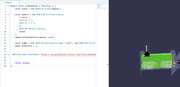
While topics like these do mention about transparency in textures, those textures were standalone, my black-backgrounded textures were all in glb/gltf files
How do I turn its background transparent instead of black?
@c4cc, I see that you are using a PBRMaterial, but only assigning an emissive texture. Unfortunately, the shader for PBRMaterial does not expect the alpha channel for alpha blend/test to be in the emissive slot so there’s nothing you can do to connect it to that texture. You can pass an opacity texture to a PBRMaterial, and that will get your opacity, but a PBRMaterial is also a very heavy shader for a simple unlit texture.
I would suggest creating a very simple node material (or even a very simple glsl custom shader if you don’t want to take node material). This is about as small as it can get for a simple unlit with alpha transparency:
Hi @c4cc , there are multiple issues with your code:
The link to your node material .json file is incorrect. You need to use a raw link, like you did with your imported .glb file.
You are not properly handling asynchronous code. ImportMeshAsync and ParseFromFileAsync are both asynchronous functions, so you need to ensure the execution order is handled correctly.
You are not properly assigning the material and texture…
If a transparent region turns black after loading a GLB/GLTF, the first thing I would check is whether the file is using the right alpha workflow for the texture it contains.
In practice this usually comes from one of these cases:
The asset was authored as cutout/mask, but the runtime is treating it like blended transparency.
The texture has transparency in the PNG, but the material was exported without the expected alpha mode.
The mesh is thin or single-sided, so backface culling makes the transparent parts look broken.
The source texture leaves black RGB behind transparent pixels, which can become visible depending on blending.
A good Babylon-side debug pass is:
inspect material.transparencyMode
test alpha blend vs alpha test
disable backface culling temporarily
verify the base color texture actually contains the expected alpha
check whether overlapping transparent meshes need a different render order
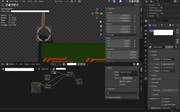
If the model looks correct in a viewer but not in-engine, I would also re-open it in Blender and confirm the alpha mode is really Blend or Mask, the material exports from a standard Principled BSDF path, and transparent pixels are not carrying black fringe.
Context: I work on SEELE, so I run into this AI-asset cleanup path pretty often.
This is the source of the transparency channel in GLTF, which comes from the alpha channel of the albedoTexture. In Babylon, the texture must have texture.hasAlpha=true, and material.useAlphaFromAlbedoTexture=true, with the material transparency mode set to BABYLON.PBRMaterial.PBRMATERIAL_ALPHABLEND to ensure the transparency mode is correct. Below is the GLB model exported after making these changes. You can reimport it into Blender to observe how the transparency channel works within the BSDF material node.