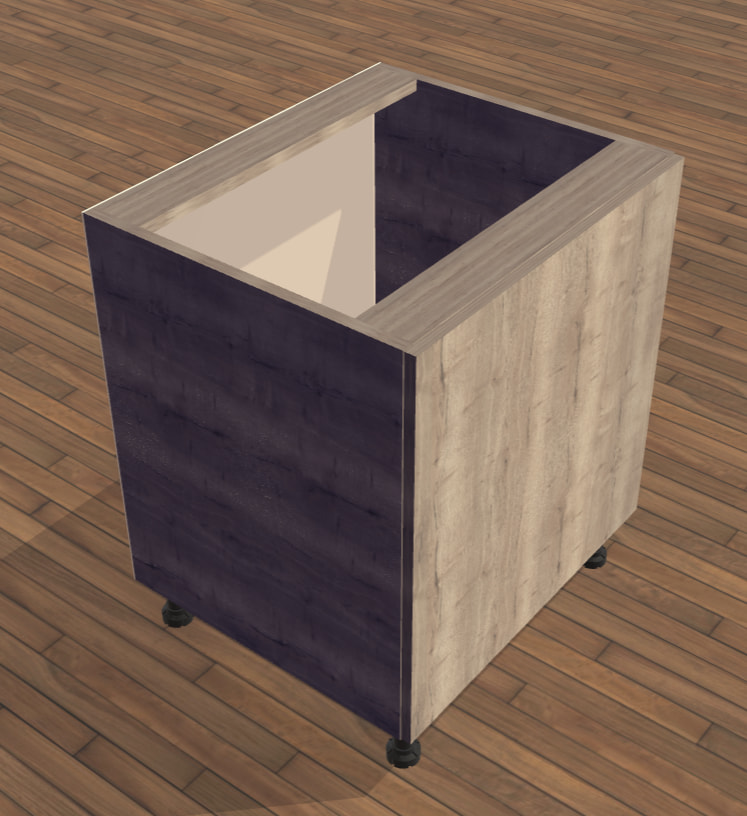
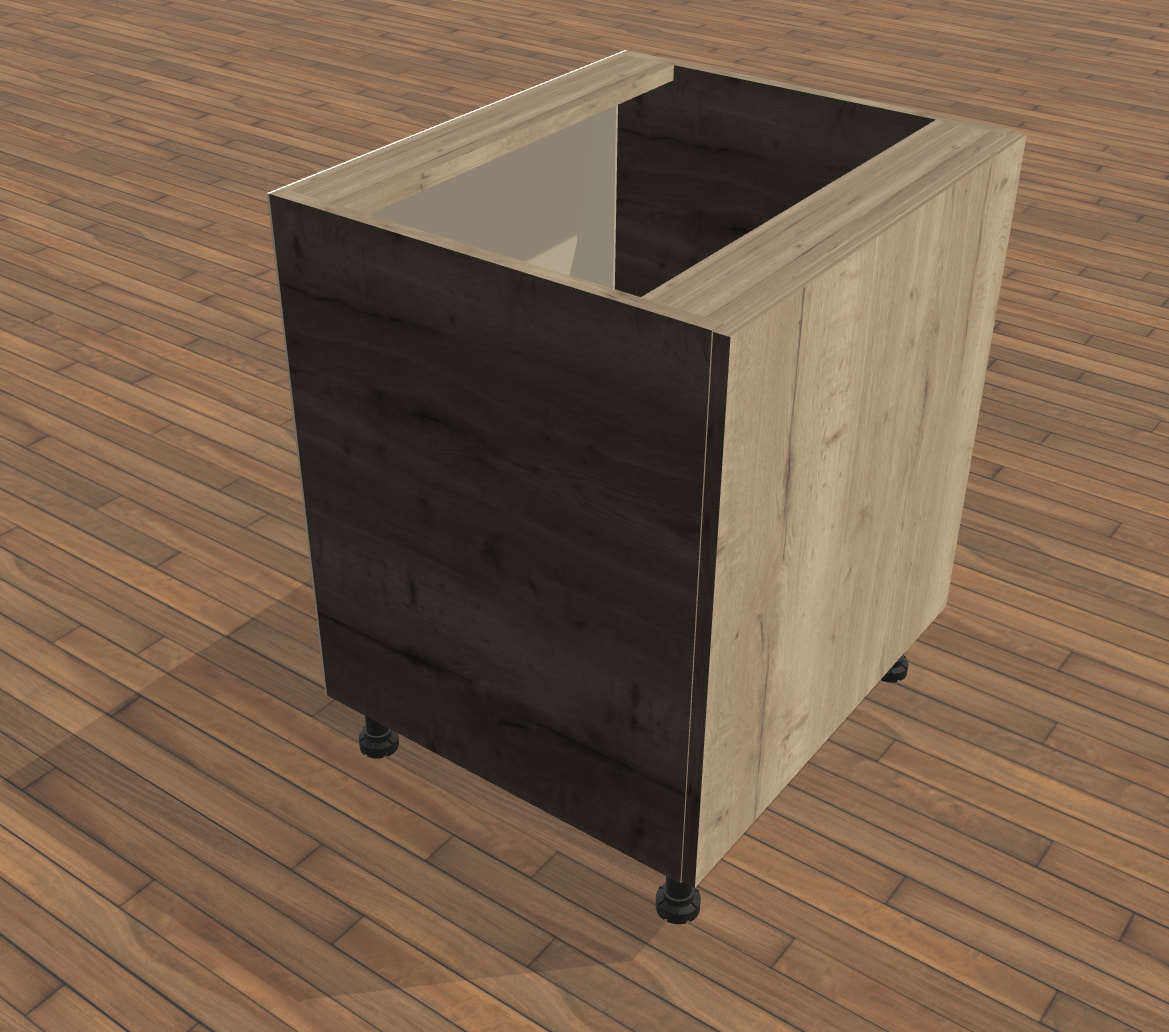
I’m trying to create a PBR texture in Node Material, but when I switch to Environment lighting it becomes black for some reason.
What am I doing wrong?
Is it possible that using an HDRI for PBR lighting is not the right approach?
P.S. I’m working on a furniture project where I want physically correct materials for realistic rendering of textures on furniture products (in this case, wood).
It seems like this worked. But what about the brightness?
The object in the scene is very dark, and if I increase the Environment intensity, all the realism is lost and it starts to look unnatural.
Maybe HDRI isn’t the right choice for my goals?
Do you have any other ideas on how to improve the image and achieve maximum realism?
Or perhaps you have an example of an already well-configured Node Material texture that I could try to use (in JSON format). I could then follow that setup as a reference for creating all the other textures in my project.
I would really appreciate it if you could help me.
These faces are in shadow, which is why they are darker. You can try reducing the darkness property of your shadow generator to lighten the shadows.
If you want to update the intensity only on the mesh material, you need to clone the environment texture and assign it to your material’s reflection texture. Note that the underlying GPU texture will not be cloned during the process, so you will not consume more memory (except for the new texture properties).
Also, how do you create your environment texture? Can you paste your code? It would be even better if you could reproduce it in the Playground, so we could help you better.
The environment texture is definitely the right method to use with PBR materials.
I can’t increase the intensity too much, because then all the realism is lost. But at the same time, I don’t want it to look like this in the shadows.
I also can’t add another Directional Light, because in that case the shadows won’t be cast correctly. I need only one Directional Light, and also a light source that would evenly illuminate the object from all sides (HDRI).
cc @PatrickRyan, I don’t quite understand why simply modifying the albedo texture (you only modified that one, right?) would have such an impact on the lighting…
After testing it several more times, I noticed that the resulting texture looked very different from the original. It turned out that I had connected the wrong output — I should have connected DiffuseDir instead of Lighting.
However, I ran into another issue: when the Environment lighting is enabled, the texture becomes completely black.
Could you please advise how this lighting issue can be fixed in this case?
diffuseDir corresponds to the diffuse component of the direct lighting: if you don’t select any direct lights in the preview, you will see a black mesh.
Note that all outputs of PBRMetallicRoughness are in linear space, except for lighting! That’s because we generally use lighting (which is the sum of all types of lights) as the final value we output from the shader. That’s why it’s already in gamma space and not in linear space. The other outputs assume you are going to use them in some calculations, so they must be used in linear space. It’s your responsibility to convert the final result to gamma space.
There’s a property on FragmentOutput to help with that:
Yes, I tried that as well. But in the end, the texture in the scene doesn’t look the same as the original texture. Here is a clear example comparing the original texture and how it looks in the scene.
Maybe I’m doing something wrong with the lighting? Or something else — I don’t really understand.